Work order lifecycle
Every iGUIDE is processed through work orders — each one representing a specific piece of work, from the initial floor plan drafting to add-on deliverables like CAD drawings and 3D models. Your iGUIDE's first work order is created automatically. When you need additional deliverables, you create more work orders through the API. Each one tracks its own progress independently. This guide explains how work orders move through their lifecycle so you can monitor status, automate ordering, and know exactly when your deliverables are ready.
Overview
- Every iGUIDE starts with an initial work order, created automatically to handle the base floor plan drafting
- You can create additional work orders through the API when you need add-on deliverables like CAD floor plans or 3D models
- Each work order tracks its own status independently — you can have multiple work orders in progress at once
- Most work orders are processed by the iGUIDE drafting team, with typical turnaround within 24 hours*
Work order statuses
When you poll a work order, you'll see one of these statuses:
| Status | Public Name | Description |
|---|---|---|
empty | Empty | Initial work order awaiting Stitch TAR data upload |
on_hold | Pending | Queued behind another active work order for the same iGUIDE |
pending_draft | Processing | In the drafting queue |
pending_qa | Processing | In quality assurance review |
pending_publish | Processing | Being published (non-draftable or auto-drafted types) |
exception | Processing | Flagged for supervisor review during processing |
done | Done | Processing complete, deliverables available |
cancelled | Cancelled | Work order was cancelled |
rejected | Rejected | Work order was rejected due to data quality issues |
For most automation scenarios, you only need to check for the terminal statuses: done, cancelled, and rejected. Any other status means the work order is still being processed.
State machine diagram
Here's how a work order moves through its statuses:
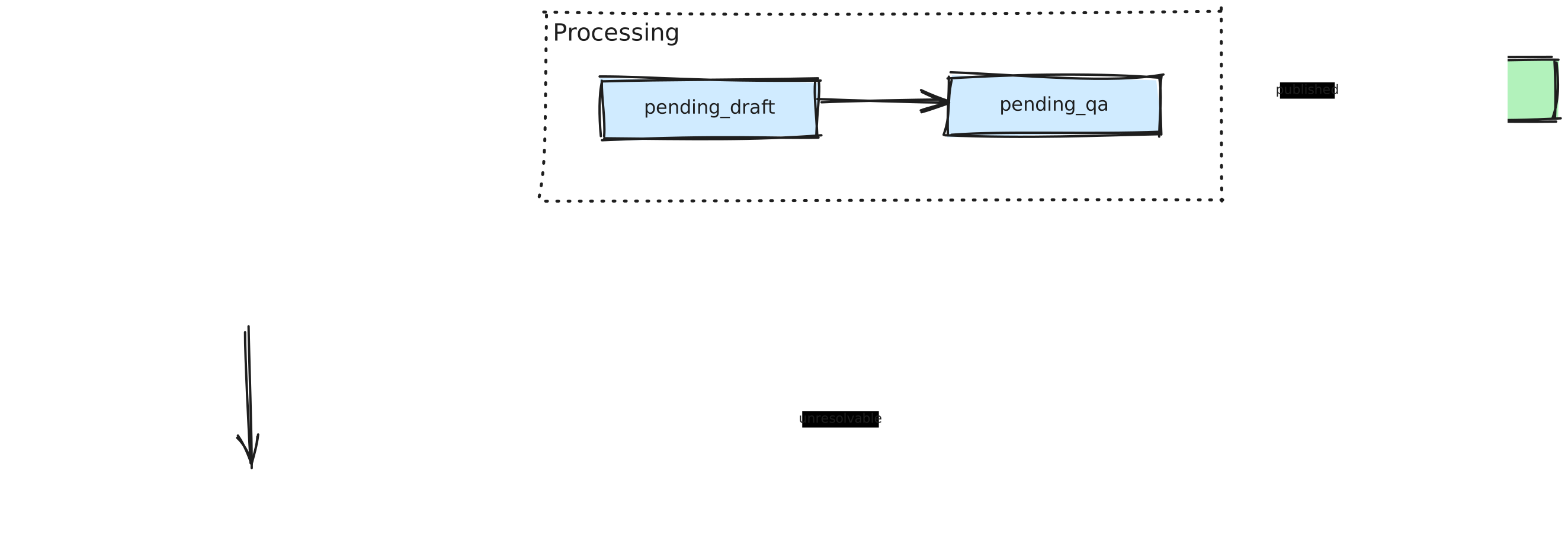
Initial vs. additional work orders
Initial work order
The initial work order is created automatically when an iGUIDE is created. It represents the base iGUIDE floor plan drafting and always starts with empty status. It moves to a processing status after a Stitch TAR is uploaded and processed by the system.
Additional work orders
Additional work orders are created via the Create a Work Order (POST /iguides/{id}/workOrders) endpoint for add-on deliverables such as CAD floor plans, 3D models, or ESX reports. If the initial work order is still being processed when you create an additional work order, it will start as on_hold and automatically begin processing when the work order being processed is completed.
You can submit add-on work orders immediately after creating the iGUIDE, without waiting for the initial work order to complete. They will remain on hold until the iGUIDE is ready.
Task types and deliverables
The task types you can include in a work order depend on your iGUIDE's package type. Standard and Premium support the widest range of add-on deliverables, while Radix offers conversion upgrades and Photos does not support additional work orders.
For the complete list of task types by package, required attributes, prerequisites, and the ADS upgrade hierarchy, see Packages & Industry Types.
Billing implications
Understanding how billing relates to work orders helps you avoid unexpected charges:
- Area-based pricing: Most task types are billed based on the property's billable area (square footage or square meters)
- Pano-based pricing: Update tasks (
draft-update,radix-update) may be billed based on the number of panoramas updated - Work order cost: The cost of a work order is finalized when a work order reaches
donestatus - Billing info endpoint: Use the Read Work Order Billing Info (
GET /iguides/{id}/workOrders/{wid}/billing) endpoint to check billable area and enabled add-ons before creating work orders
You can check billing info for a work order before committing to an add-on:
curl https://manage.youriguide.com/api/v1/iguides/ig12345/workOrders/Z1T9/billing \
  -H 'Accept: application/json' \
  -H 'X-Plntr-App-Id: YOUR_APP_ID' \
  -H 'X-Plntr-App-Token: YOUR_APP_ACCESS_TOKEN'
Example Response:
{
  "billableArea": 2450,
  "billableAreaUnit": "sqft",
  "addOns": ["dwg", "rvt"]
}
Operator automation workflow
Here's the recommended flow for automating iGUIDE creation and add-on ordering in your integration:
- Create the iGUIDE and save the returned
workOrderIdfor the initial work order - Upload the Stitch TAR and trigger processing via the process endpoint
- Poll the initial work order status, or listen for the iGUIDE
readywebhook event - When the initial work order is
done, create additional work orders for any required add-ons - Poll additional work order status until each reaches
done - Download deliverables from the completed work orders
There are no webhooks for individual work order state changes. You must poll the work order read endpoint to track status. We recommend polling every 30 minutes for add-on work orders, as drafting can take several hours depending on queue depth and task type.*
Error handling
If a work order doesn't complete successfully, here's what to expect:
rejected: The work order was rejected due to data quality issues — for example, incomplete scan data or a corrupted Stitch TAR. Check the work order details for a reason code and contact support if needed. You may need to re-scan the property and create a new iGUIDE.cancelled: The work order was cancelled. This can happen manually or automatically — when a parent work order is rejected or cancelled, any dependenton_holdwork orders are automatically cancelled as well.
When polling for status changes, implement exponential backoff to avoid excessive API calls. Start with a short interval and increase it progressively if the work order remains in a processing state.