S3 upload pattern
The Portal API uses a direct-to-S3 upload pattern for all file uploads — Stitch Data, assets and supporting documents. Instead of streaming files through the API server, the API issues temporary AWS credentials that let you upload directly to S3. This keeps uploads fast and reliable regardless of file size, and means the API server never becomes a bottleneck for large transfers.
Every upload follows the same three-step flow: get a permit, upload to S3, trigger processing.
The three-step flow
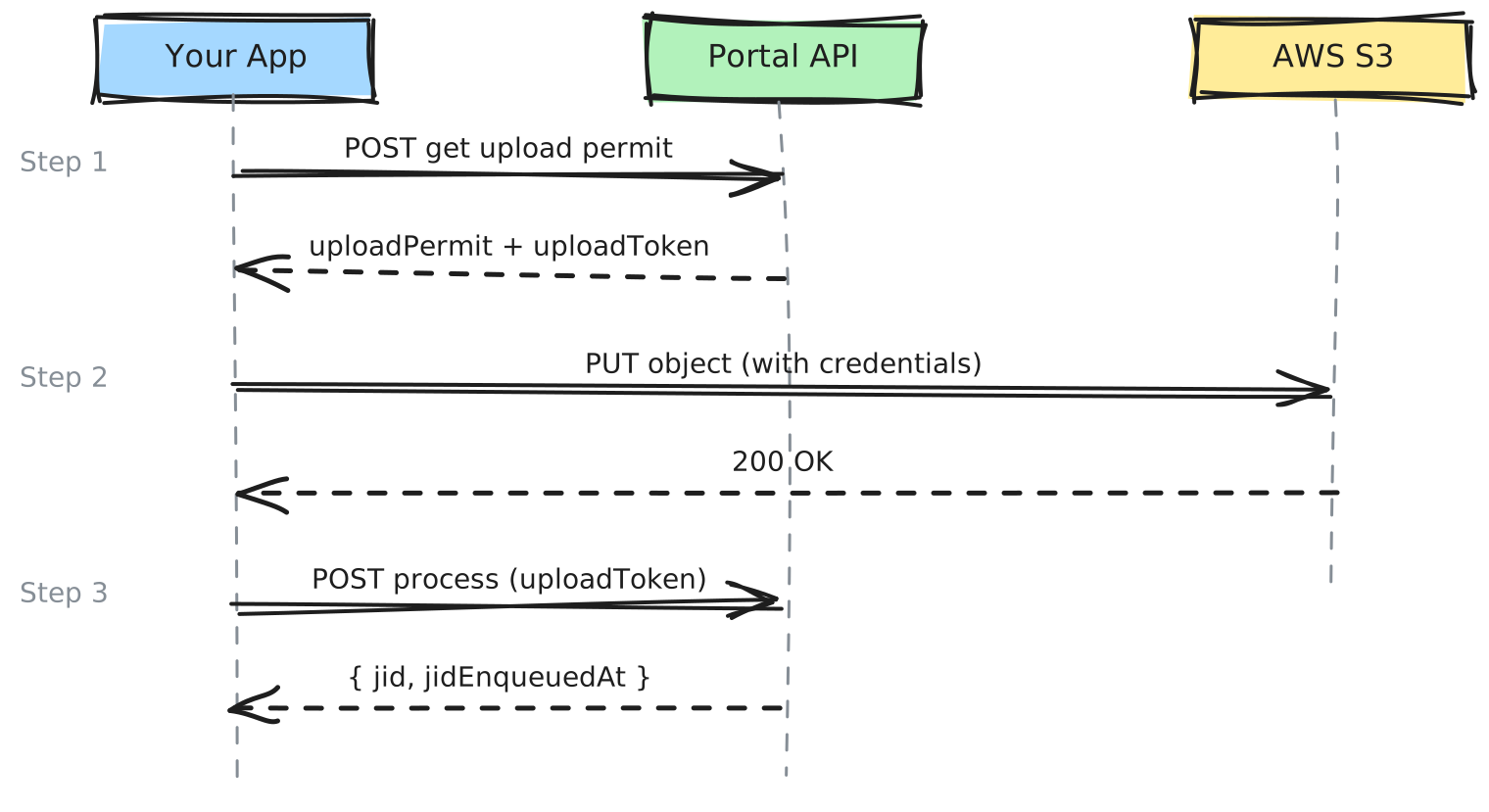
| Step | What Happens | Who You Talk To |
|---|---|---|
| 1. Get upload permit | Request temporary S3 credentials from the Portal API | Portal API |
| 2. Upload to S3 | Upload the file directly using the temporary credentials | AWS S3 |
| 3. Trigger processing | Tell the Portal API to process the uploaded file | Portal API |
This pattern applies to both Stitch Data and asset uploads. The endpoints differ, but the flow is identical.
Step 1: Get upload permit
Request an upload permit from the Portal API. The response contains everything you need to upload directly to S3.
For Stitch Data (Get Stitch Data upload permit):
curl -X POST https://manage.youriguide.com/api/v1/iguides/$IGUIDE_ID/workOrders/$WORK_ORDER_ID/stitchData \
  -H "Content-Type: application/json" \
  -H "X-Plntr-App-Id: $APP_ID" \
  -H "X-Plntr-App-Token: $APP_TOKEN" \
  -d '{
    "filename": "property.stitch.tar",
    "filesize": 524288000
  }'
For assets (Request asset upload permit):
curl -X POST https://manage.youriguide.com/api/v1/iguides/$IGUIDE_ID/assets \
  -H "Content-Type: application/json" \
  -H "X-Plntr-App-Id: $APP_ID" \
  -H "X-Plntr-App-Token: $APP_TOKEN" \
  -d '{
    "filename": "front-exterior.jpg",
    "filesize": 4500000
  }'
The filesize value must be the exact size of the file in bytes. Use stat filename.tar to get it.
Both endpoints return the same structure — an uploadPermit object with temporary AWS credentials and an uploadToken for triggering processing later:
{
  "id": "4MN",
  "uploadPermit": {
    "region": "us-east-1",
    "bucket": "iguides.plntr.ca",
    "key": "stitch-data/4MN/original.tar",
    "accessKeyId": "ASIAXXX...",
    "secretAccessKey": "xxx...",
    "sessionToken": "FwoGZXIvYXdz..."
  },
  "uploadToken": "eyJhbGciOiJIUzI1NiIs..."
}
You need both uploadPermit (for the S3 upload) and uploadToken (for triggering processing). The upload token is a JWT that the API uses to verify your upload when you trigger processing in Step 3.
How the credentials work
The Portal API uses AWS STS federation tokens — not presigned URLs. This means you receive a full set of temporary AWS credentials (accessKeyId, secretAccessKey, sessionToken) scoped to a single S3 key. You use these credentials with any standard AWS SDK or the AWS CLI, just like regular AWS credentials.
The credentials are scoped with a restrictive IAM policy:
- Write access to only the specific S3 key in the permit — you cannot access other files
- Requires
bucket-owner-full-controlACL on the upload — enforced by the policy - Multipart upload permissions —
ListMultipartUploadPartsandAbortMultipartUploadare included for large file support
Credential lifetimes
Credentials expire after a fixed duration. If your upload takes longer, request a new permit.
| Upload Type | Duration | Notes |
|---|---|---|
| Stitch Data (via work order) | 24 hours | Suitable for large TAR files over slow connections |
| Assets (photos, documents) | 2 hours | Shorter-lived since asset files are typically small |
For most integrations, credential lifetime is not a concern — uploads complete well within these windows. If you're uploading very large Stitch files over slow connections, monitor the expiration field and request new credentials if needed.
Step 2: Upload to S3
Use the credentials from the upload permit to upload directly to AWS S3. The recommended approach is to use an official AWS SDK.
Using the AWS CLI:
# Set credentials from the upload permit
export AWS_ACCESS_KEY_ID="ASIAXXX..."
export AWS_SECRET_ACCESS_KEY="xxx..."
export AWS_SESSION_TOKEN="FwoGZXIvYXdz..."

# Upload to the exact bucket and key from the permit
aws s3 cp property.stitch.tar \
  s3://iguides.plntr.ca/stitch-data/4MN/original.tar \
  --acl bucket-owner-full-control \
  --region us-east-1
Using the AWS JavaScript SDK:
import { S3Client, PutObjectCommand } from "@aws-sdk/client-s3";
import { readFileSync } from "fs";

const { uploadPermit } = permitResponse;

const s3 = new S3Client({
  region: uploadPermit.region,
  credentials: {
    accessKeyId: uploadPermit.accessKeyId,
    secretAccessKey: uploadPermit.secretAccessKey,
    sessionToken: uploadPermit.sessionToken,
  },
});

await s3.send(new PutObjectCommand({
  Bucket: uploadPermit.bucket,
  Key: uploadPermit.key,
  Body: readFileSync("property.stitch.tar"),
  ACL: "bucket-owner-full-control",
}));
Using the AWS Python SDK (boto3):
import boto3

permit = permit_response["uploadPermit"]

s3 = boto3.client("s3",
    region_name=permit["region"],
    aws_access_key_id=permit["accessKeyId"],
    aws_secret_access_key=permit["secretAccessKey"],
    aws_session_token=permit["sessionToken"],
)

s3.upload_file(
    "property.stitch.tar",
    permit["bucket"],
    permit["key"],
    ExtraArgs={"ACL": "bucket-owner-full-control"},
)
You must include ACL: bucket-owner-full-control on every upload. The IAM policy enforces this — uploads without the ACL will fail with a 403 Forbidden error.
Multipart uploads
For large files (Stitch Data can be hundreds of megabytes), use multipart uploads. The AWS SDKs handle this automatically when you use their high-level upload APIs:
- AWS CLI:
aws s3 cpuses multipart automatically for files over 8 MB - JavaScript SDK: Use
@aws-sdk/lib-storageUploadclass for automatic multipart - Python boto3:
s3.upload_file()uses multipart automatically for large files
The upload permit credentials include the necessary permissions for multipart operations (ListMultipartUploadParts, AbortMultipartUpload), so no additional configuration is needed.
Always use the SDK's high-level upload methods rather than manual PutObject calls for Stitch Data. They handle multipart chunking, retries and progress tracking automatically.
Step 3: Trigger processing
After uploading to S3, tell the Portal API to process the file. You'll need the uploadToken from Step 1 and the resource ID.
For Stitch Data (Process uploaded Stitch Data):
curl -X POST "https://manage.youriguide.com/api/v1/iguides/$IGUIDE_ID/workOrders/$WORK_ORDER_ID/stitchData/$STITCH_DATA_ID/process?uploadToken=$UPLOAD_TOKEN" \
  -H "X-Plntr-App-Id: $APP_ID" \
  -H "X-Plntr-App-Token: $APP_TOKEN"
For assets (Process uploaded asset file):
curl -X POST "https://manage.youriguide.com/api/v1/iguides/$IGUIDE_ID/assets/$ASSET_NAME/process?uploadToken=$UPLOAD_TOKEN" \
  -H "X-Plntr-App-Id: $APP_ID" \
  -H "X-Plntr-App-Token: $APP_TOKEN"
Both return a background job reference:
{
  "jid": "abc123",
  "jidEnqueuedAt": "2025-02-18T19:30:00Z",
  "accessToken": "eyJ..."
}
Waiting for processing
You can poll the Wait for Stitch Data processing endpoint (or Wait for asset processing for assets) with the jid from the response. This is a blocking endpoint — it will either return when processing completes or timeout:
curl "https://manage.youriguide.com/api/v1/iguides/$IGUIDE_ID/workOrders/$WORK_ORDER_ID/stitchData/$STITCH_DATA_ID/waitForProcess?jid=$JID&jidEnqueuedAt=$JID_ENQUEUED_AT" \
  -H "X-Plntr-App-Id: $APP_ID" \
  -H "X-Plntr-App-Token: $APP_TOKEN"
If the job has not completed, the endpoint returns a timeout error — retry with the same jid and jidEnqueuedAt values until it succeeds.
For production integrations, prefer webhooks over polling. Register a webhook URL when creating the iGUIDE and you'll receive a ready event when all iGUIDE processing is complete.
Error handling & retries
Common errors
| Error | Cause | Resolution |
|---|---|---|
| 403 Access Denied (S3 upload) | Credentials expired or missing ACL | Request a new upload permit. Ensure bucket-owner-full-control ACL is set. |
| 403 Forbidden (process endpoint) | Invalid or expired uploadToken | Request a new upload permit and re-upload. |
| 404 Not Found (process endpoint) | File not found at the expected S3 key | Verify the upload completed successfully. Upload to the exact bucket and key from the permit. |
| Timeout (waitForProcess) | Processing not yet complete | Retry the same request. This is expected for long-running jobs. |
Retry strategy
- S3 upload failures: AWS SDKs include built-in retry logic for transient S3 errors. For credential expiration, request a new upload permit and retry the upload from the beginning.
- Processing timeouts: The
waitForProcessendpoint is designed for repeated polling. Retry with the samejiduntil the job completes. - API errors (5xx): Retry with exponential backoff. The Portal API is idempotent for upload permit requests — requesting a new permit does not invalidate an in-progress upload from a previous permit.
Stitch Data vs assets
The three-step flow is identical for both, but the endpoints and details differ:
| Stitch Data | Assets | |
|---|---|---|
| What | Raw scan TAR file from iGUIDE camera | Photos, documents, supplementary media |
| Get permit | POST /iguides/{id}/workOrders/{woId}/stitchData | POST /iguides/{id}/assets |
| Trigger processing | POST .../stitchData/{sdId}/process | POST .../assets/{name}/process |
| Wait for processing | GET .../stitchData/{sdId}/waitForProcess | GET .../assets/{name}/waitForProcess |
| Credential lifetime | 24 hours | 2 hours |
| Typical file size | 100 MB – 1 GB+ | 1 – 20 MB |
| Resource identifier | id (Stitch Data ID) | name (generated asset name) |
The asset name returned by the permit endpoint is generated by the Portal — it is not your original filename. Use this generated name in all subsequent API calls.
Related resources
- Core Resources — overview of Stitch Data and asset entities
- Get Stitch Data Upload Permit — API reference
- Request Asset Upload Permit — API reference
- Process Uploaded Stitch Data — API reference
- Process Uploaded Asset File — API reference
- Wait for Stitch Data Processing — API reference
- Wait for Asset Processing — API reference
- Webhooks — event-driven alternative to polling
- API Responses & Error Handling — general error handling patterns